 Ultimate IPTV
Follow a team or an entire league
Start with Follow Teams or Follow Leagues in Your Games on Home. You can manage follows in Settings under My Teams. Following a league includes its member teams in the sports experience.
Your Games puts live games first. A fixture tells you when a team is playing; it does not guarantee that your source carries a broadcast. Automatic game reminders also need a matching guide broadcast, enabled reminder settings and notification permission on a device that supports notifications.
Plan with the Games calendar
Browse by day and filter by country. Live and upcoming fixtures share the Games list, and postponed games are identified. Use it on Apple TV when planning your viewing, or on iPhone and iPad when you are away from the TV.
A game can appear without a live score. Fixtures, scores and detailed statistics have different coverage, so the presence of one does not promise the others.
Understand the ranked broadcast choices
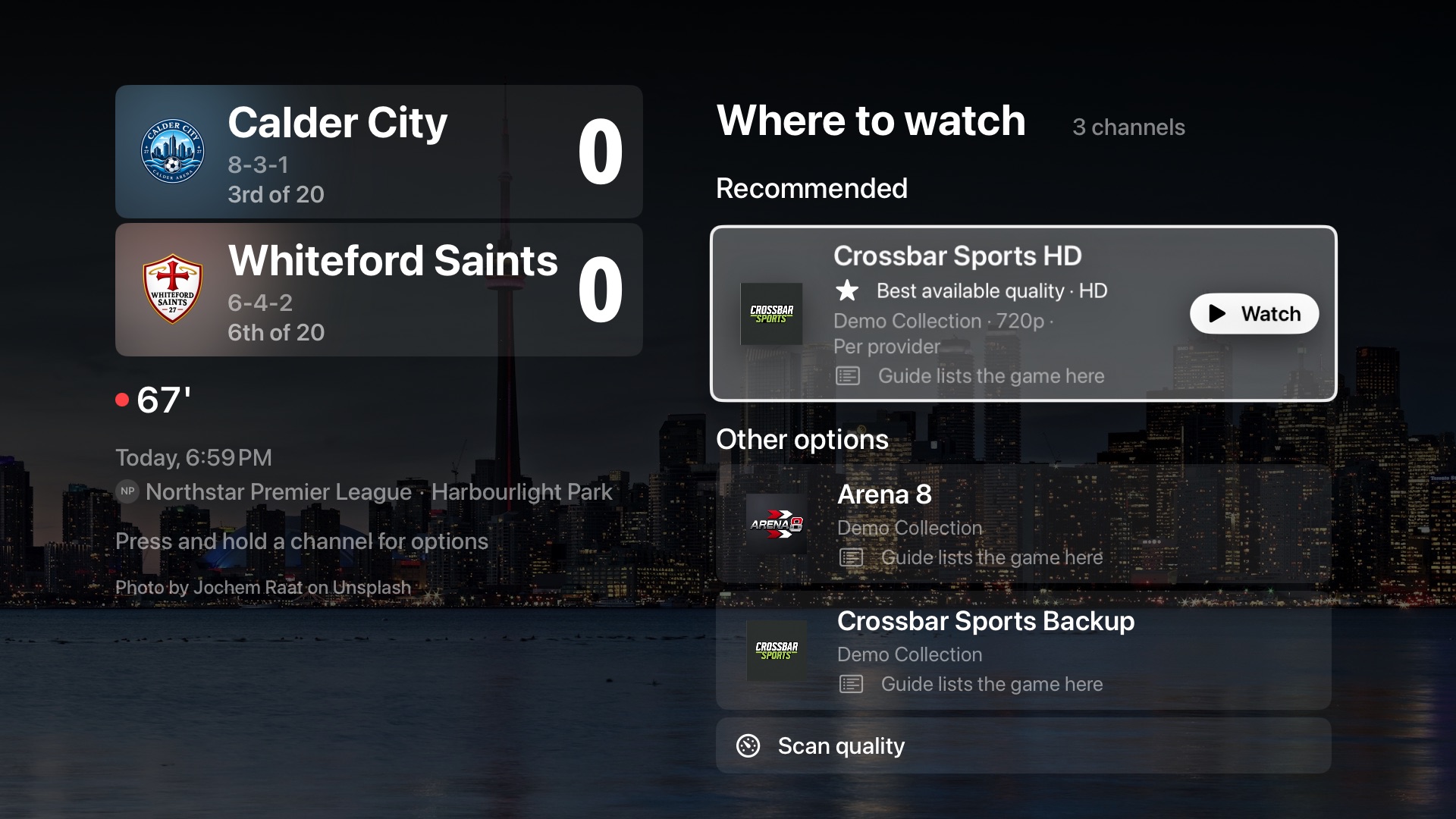
Open a game to see its broadcast choices and a recommended channel. The app uses guide listings and available broadcaster or TV-network information to suggest feeds within the active profile. Broadcaster matching can help when the guide has no listing.
Check that the selected channel is actually showing the game. A recommendation is a matching aid, not confirmation of the programme, your source’s access rights or successful playback. If a feed is wrong, choose another available option.
What Scan quality measures
For a game that has not finished and has more than one feed to compare, choose Scan quality. The app probes available streams to measure properties such as resolution and frame rate, then updates the ranked choices.
Scanning uses source connections. It respects known limits and may ask for confirmation when a limit is unknown. Busy, refused or unreadable feeds can be skipped. An unmeasured choice is not necessarily a poor stream, and a measurement does not prove the channel is showing the match.
See the context behind the score
Game details can include team records, league-table positions, the venue and a home-city backdrop. Goals, cards, match statistics and lineups appear where the sports data supports them. Period scores are available for supported ESPN leagues.
In the player, open the score card and available game statistics without leaving the video. On Apple TV, multiview can show two to four live channels; each needs an available source connection and a capable device.
Hide scores when you are catching up later
Open Settings → Spoilers. Use Hide Spoilers to hide scores, clocks, results and winners across Home, Sports, Schedule, widgets, Top Shelf and the player. Game status is shown without revealing the result.
If you want scores elsewhere but not over the video, use Hide Spoilers While Watching instead. This hides the player’s score information while leaving the other surfaces available.
Hiding spoilers also prevents score Live Activities from starting and ends the running score activity. It cannot remove score graphics embedded in the video itself.
Widgets, Top Shelf and Live Activities
- Apple TV Top Shelf: put Ultimate IPTV in the top app row to see published live matchup tiles before opening the app.
- iPhone widgets: add Your Games for followed fixtures and On Now for favorite-channel listings. iOS controls widget refresh timing.
- Score Live Activity: on a supported iPhone, playback of a guide-matched fixture for a followed team or league can start a score card on the Lock Screen and Dynamic Island. Enable Live Activities in the app and allow them in system settings.
All score surfaces depend on data coverage and connectivity. If a score is missing, first check the fixture’s coverage and spoiler settings; a working video stream does not guarantee score data.